Whitelabeling the React Native SDK
Embedded Wallets allows complete whitelabeling with application branding for a consistent user experience. You can customize the appearance, branding, and language of the authentication screens opened in the in-app browser.
All of these settings can be easily managed directly from the Embedded Wallets dashboard. Once you update your branding, or UI preferences there, the changes will automatically apply to your integration.
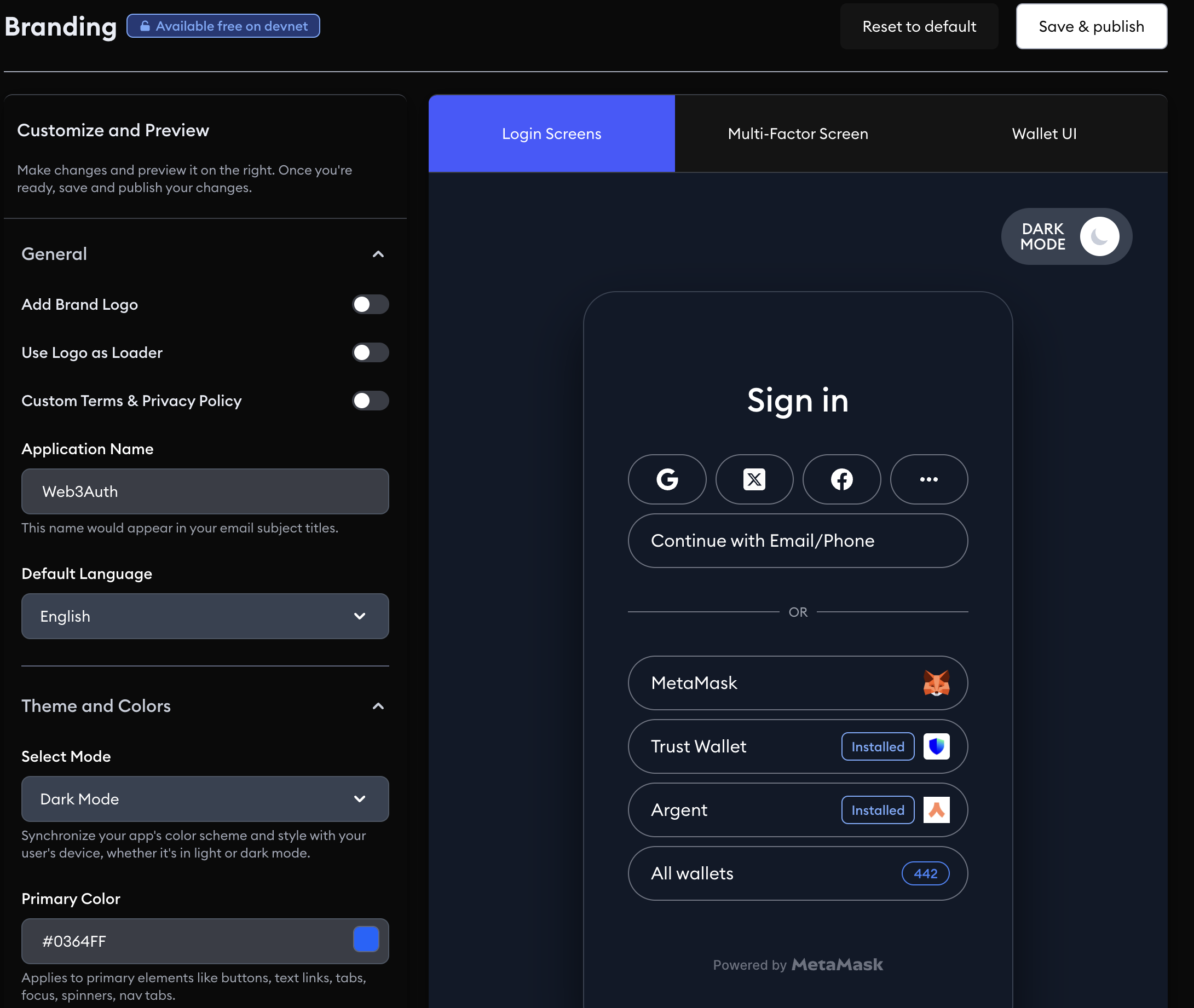
This is a paid feature and the minimum pricing plan to use this SDK in a production environment is the Growth Plan. You can use this feature in Web3Auth Sapphire Devnet network for free.
Configuration
Set whiteLabel inside web3AuthOptions in your web3authConfig.ts:
import {
  CHAIN_NAMESPACES,
  WEB3AUTH_NETWORK,
  type Web3AuthContextConfig,
} from '@web3auth/react-native-sdk'

const web3AuthConfig: Web3AuthContextConfig = {
  web3AuthOptions: {
    clientId: 'YOUR_CLIENT_ID',
    redirectUrl: 'yourapp://auth',
    network: WEB3AUTH_NETWORK.SAPPHIRE_MAINNET,
    chains: [
      {
        chainNamespace: CHAIN_NAMESPACES.EIP155,
        chainId: '0xaa36a7',
        rpcTarget: 'https://rpc.ankr.com/eth_sepolia',
        displayName: 'Ethereum Sepolia Testnet',
        blockExplorerUrl: 'https://sepolia.etherscan.io',
        ticker: 'ETH',
        tickerName: 'Ethereum',
      },
    ],
    defaultChainId: '0xaa36a7',
    whiteLabel: {
      appName: 'My App',
      logoLight: 'https://example.com/logo-light.png',
      logoDark: 'https://example.com/logo-dark.png',
      defaultLanguage: 'en',
      mode: 'auto',
      theme: {
        primary: '#cddc39',
      },
    },
  },
}

export default web3AuthConfig
WhiteLabelData parameters
| Parameter | Type | Description |
|---|---|---|
appName? | string | Display name for your app shown on the authentication screens. |
appUrl? | string | Your app's URL shown on the authentication screens. |
logoLight? | string | Logo URL used in dark mode (light-colored logo). |
logoDark? | string | Logo URL used in light mode (dark-colored logo). |
defaultLanguage? | LANGUAGE_TYPE | Language for the authentication UI. Supported: en, de, ja, ko, zh, es, fr, pt, nl. Defaults to en. |
mode? | THEME_MODE_TYPE | Color scheme: "auto", "light", or "dark". Defaults to "auto". |
theme? | Record<string, string> | Custom color overrides. primary sets the accent color (hex string). |
useLogoLoader? | boolean | Use your app logo on the loading screen. If no logo is provided, the default Web3Auth logo is used. Defaults to false. |
tncLink? | Partial<Record<LANGUAGE_TYPE, string>> | Language-keyed Terms and Conditions URL (for example, { en: "https://example.com/tnc" }). |
privacyPolicy? | Partial<Record<LANGUAGE_TYPE, string>> | Language-keyed Privacy Policy URL. |
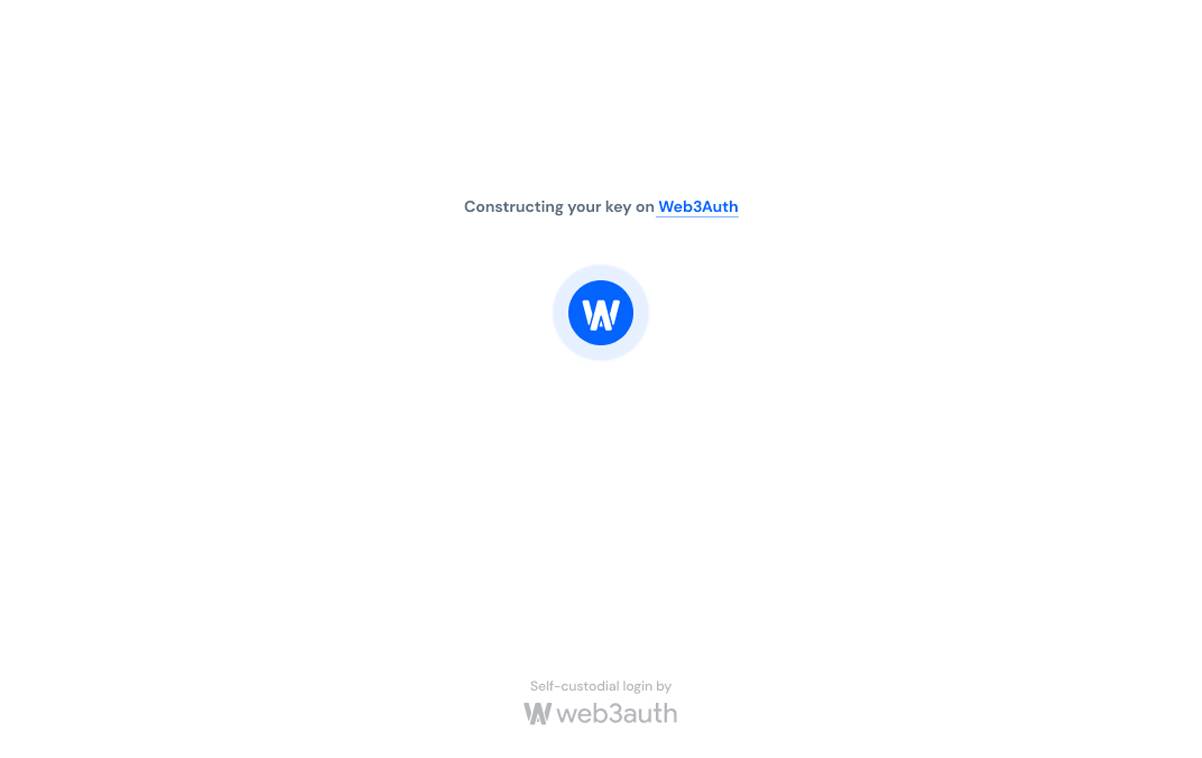
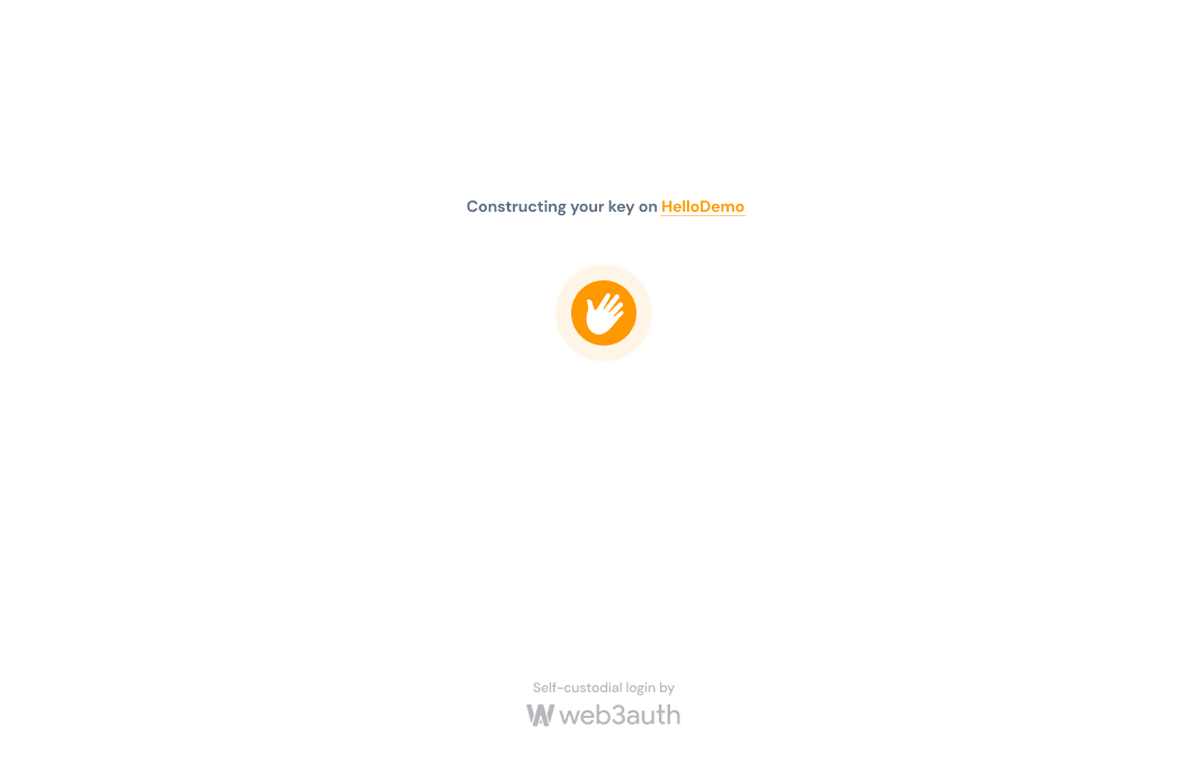
name
The name of the application. This will be displayed in the key reconstruction page.
Standard screen without any change
Name changed to Formidable Duo
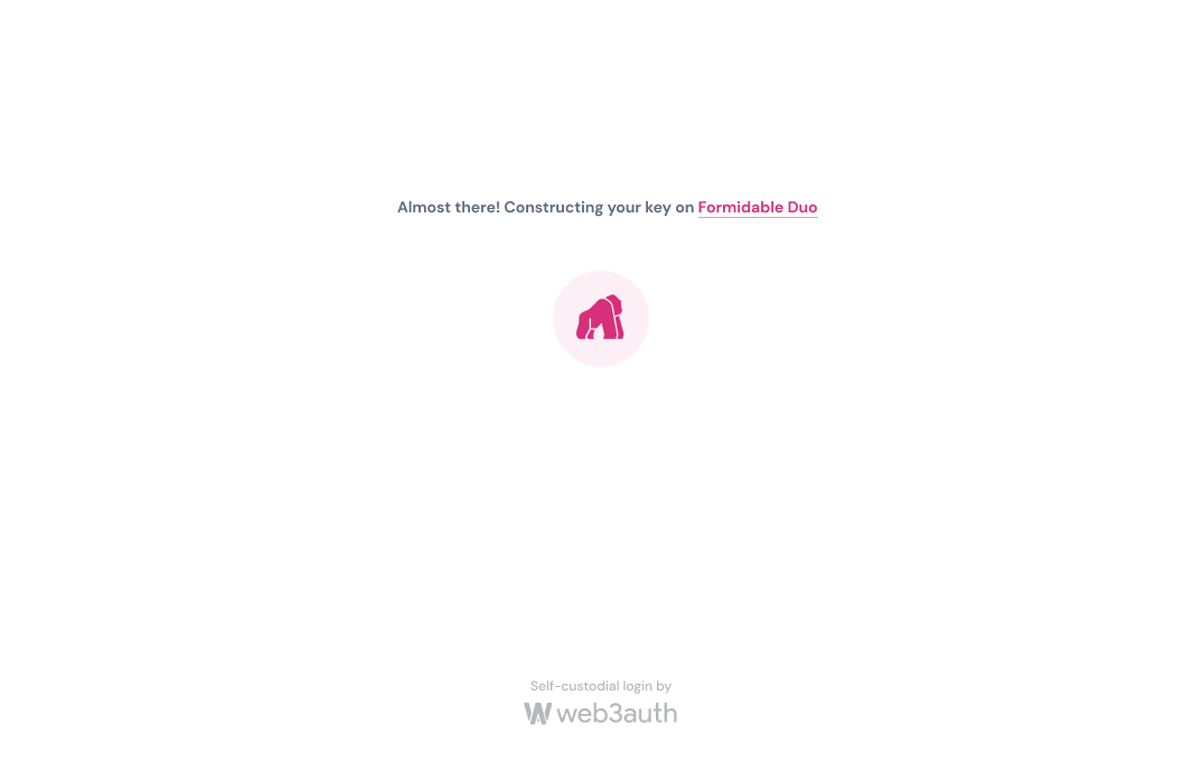
logoLight & logoDark
The logo of the application. Displayed in dark and light mode respectively. This will be displayed in the key reconstruction page.
logoLight on dark mode
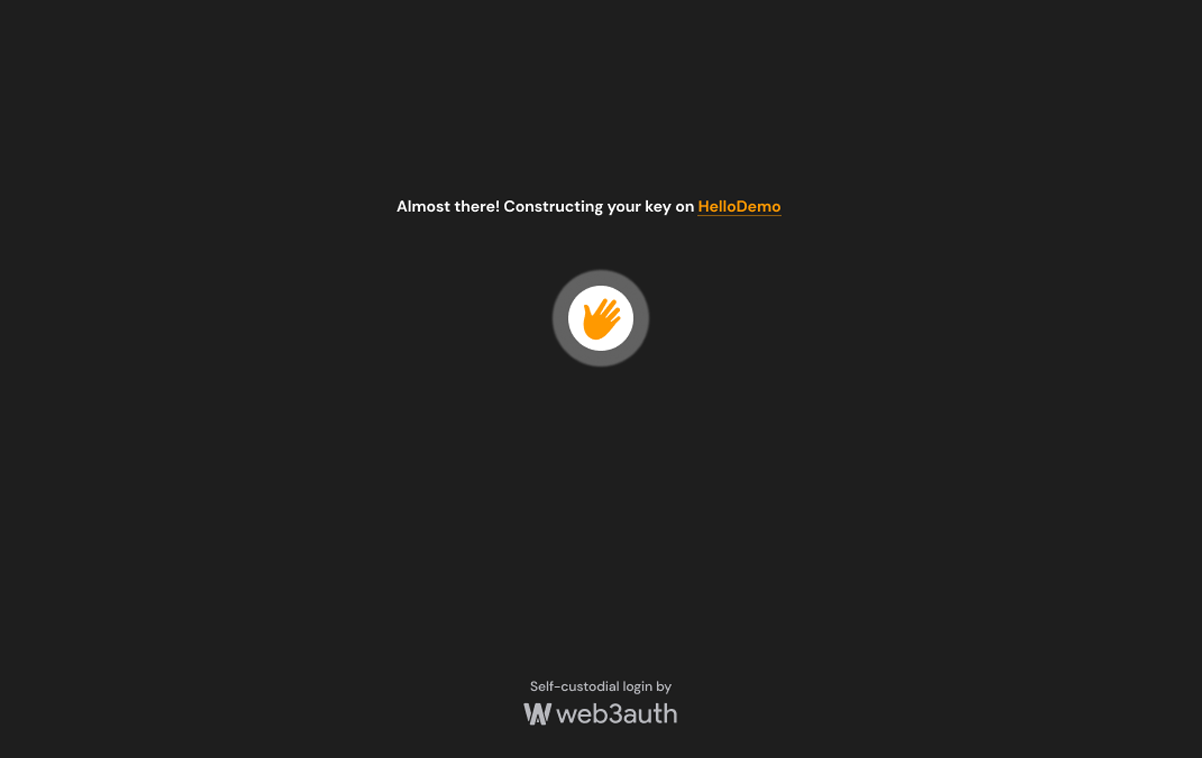
logoDark on light mode
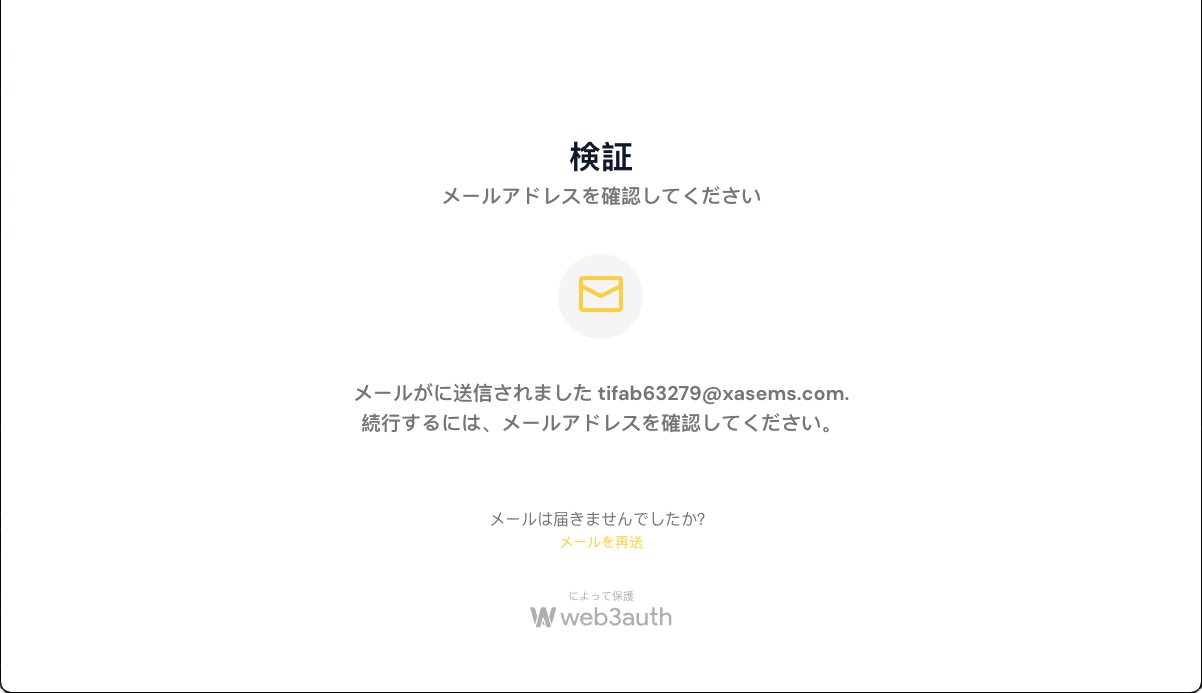
defaultLanguage
Default language will set the language used on all OpenLogin screens. The supported languages are:
en- English (default)de- Germanja- Japaneseko- Koreanzh- Mandarines- Spanishfr- Frenchpt- Portuguesenl- Dutchtr- Turkish
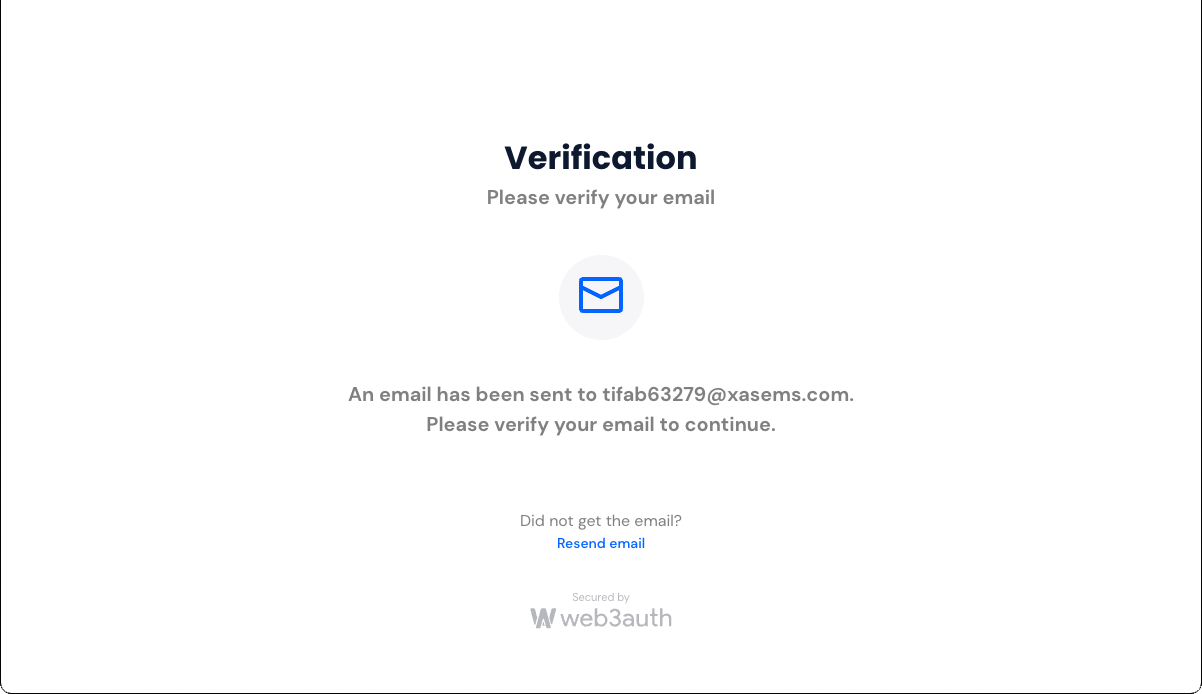
dark
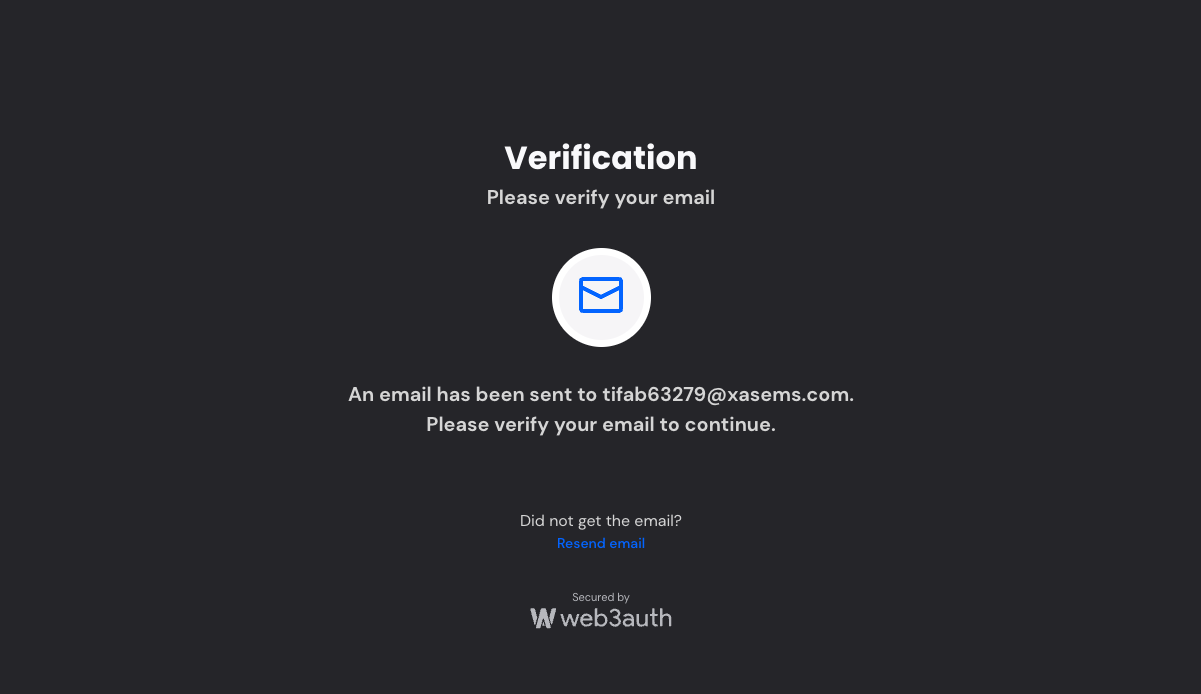
Can be set to true or false with default set to false.
For Light: dark: false
For Dark: dark: true
theme
Theme is a record of colors that can be configured. As of, now only primary color can be set and
has effect on OpenLogin screens (default primary color is #0364FF). Theme affects icons and links.
Examples below.
Standard color #0364FF
Color changed to #D72F7A